Overview
Installation
Connection
Configuration
Export an expense
Overview
Key features of the new integration
- Integration Type - app installed inside Business Central
- Cloud, On-Premises & Partner-Hosted Business Central is supported (version 24 and higher)
- Export
- Pleo expenses can be exported into Business Central as Journal entries and Purchase Invoices
- Exporting of card expenses, invoices, out-of-pocket, mileage, reimbursements, personal spend and any other expense is supported
- Expense attachments (receipts) are transferred together with the expense data
- Tags Sync
- Import and sync Dimensions from Business Central with Tags in Pleo
- Select which Dimension Values you want to see as Tags in their Pleo
- Tax Sync
- Import and sync VAT Setups from Business Central with Tax Codes in Pleo
- Select VAT Setups you want to see as Tax Codes in Pleo
- Chart of Accounts Sync
- Import and synchronise GL & Bank Accounts from Business Central with Pleo
- Vendor Tagging
- Synchronise Vendors between Pleo and Business Central
- Book exported expenses on actual Vendors in Business Central
- Other
- Multi-Entity Support - easily connect each Pleo entity to a separate company in Business Central
- Closed Accounts Period Bookkeeping- export expenses belonging to closed accounting periods
- Multi-Currency - enable multi-currency in Pleo and export expenses paid in different currencies into Business Central
Installation
To install and set up the integration app, ensure you have:
- Admin or Bookkeeper role on Pleo
- Required user permissions on Business Central:
- Option 1:
- SUPER - if this user permission set is assigned to you - you will be able to install and set up integration yourself
- If SUPER is not assigned, see option 2
- Option 2:
- Ask a user with SUPERpermission set to install the app for you.
- After installing the app, ask your Business Central Super User to assign PLEOINTADMIN permission set to your User Account in Business Central, as well as to any other user accounts that will be using the integration (please refer to the ‘Good to know’ section below if needed).
- Option 1:
How to check user permission in Business Central?
- In Business Central, access Users page
- Under the User Name column, click on your user name
- In the User Permission Sets section, you can see Permission Sets assigned to this User

For EXTEN. MGT. - ADMIN permission, it may not appear in the User Permission Sets table. To check for it:
- Click on top of any permission set
- Click the three-dotted icon
- Search for EXTEN. MGT. - ADMIN in the list

Installation for Cloud Business Central
- Go to the Pleo app in Microsoft AppSource
- Click Get it Now
- Use your Business Central credentials to sign in (if required)
- Select the Business Central environment into which you want to install the app
- Follow the on-screen instructions
Installation for On-premises or Partner-hosted Business Central
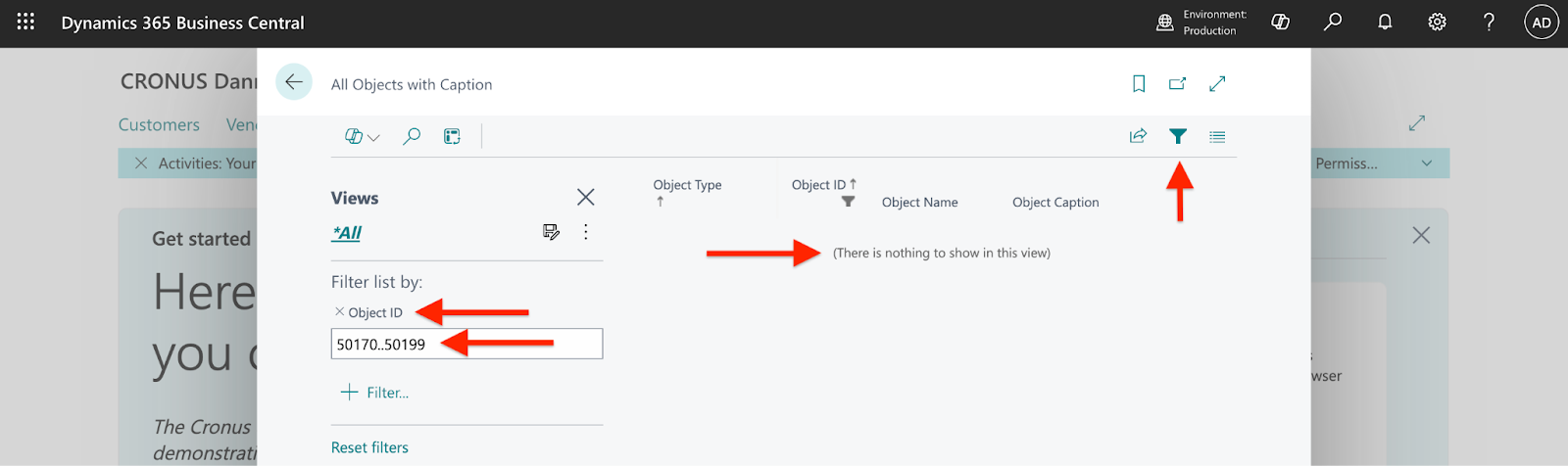
The integration uses object range 50170–50199 - follow the steps to check object range availability and request the integration package from Pleo:
- Access the All Objects page by tapping “all objects” in the search
- Apply Filter by Object ID and insert 50170..50199 into the filter field
- Check whether 50170_50199 object range is available in your Business Central
- If you see “There is nothing to show in this view”, the object range is available - request the BC integration app package from your Pleo contact or Support, mentioning that the object range is fully available.
- If any object within this range is already in use, reach out to your Pleo contact or Support and specify that all objects are already in use, so we can assign a new range and adjust your integration package.
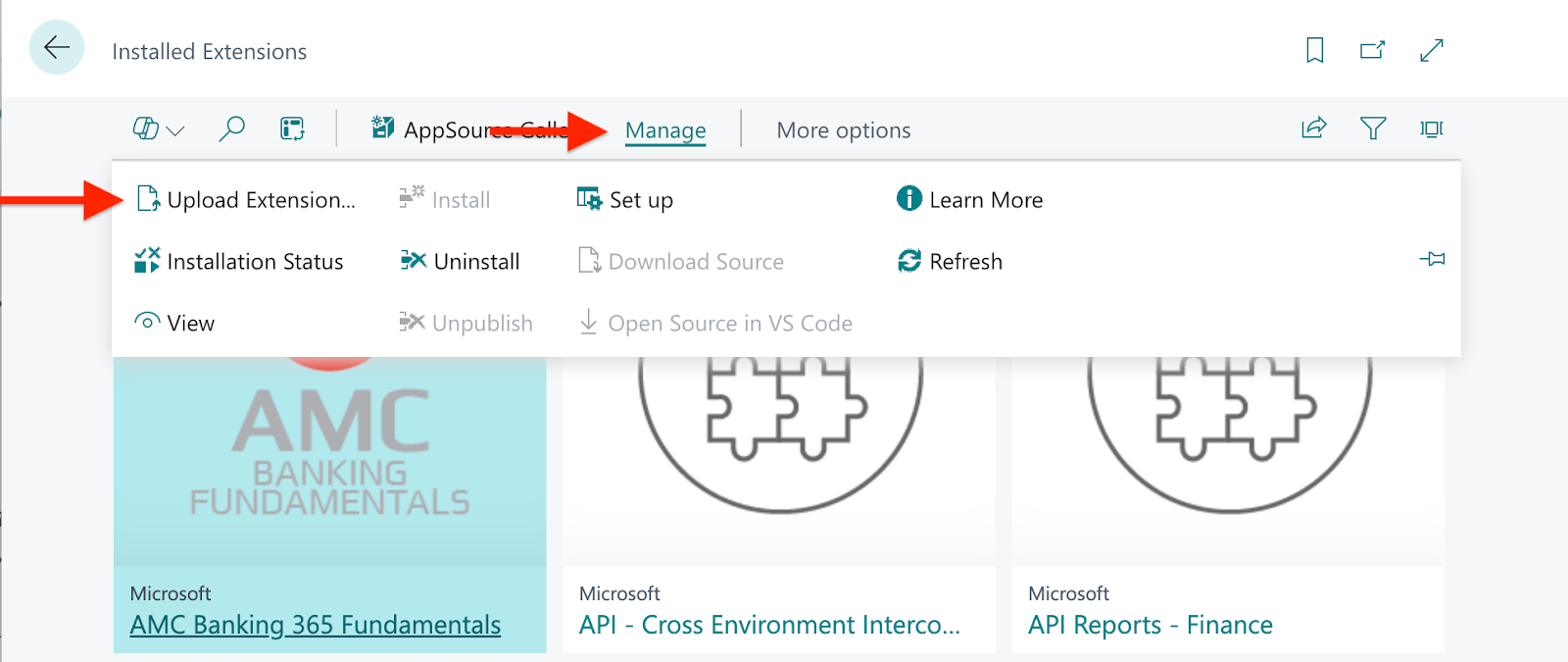
- Install the package into your Business Central via Extension Management
How to install the integration package via Extension Management
- Unarchive the package file if you received it in the zip format
- Access Extension Management in Business Central
- Click Manage and Upload Extension
- Use Select .app file to upload the extension
- Ensure Deploy to Current version is selected
- Accept the privacy policy disclaimer toggle
- Click Deploy
- If successfully installed, the status will be Completed
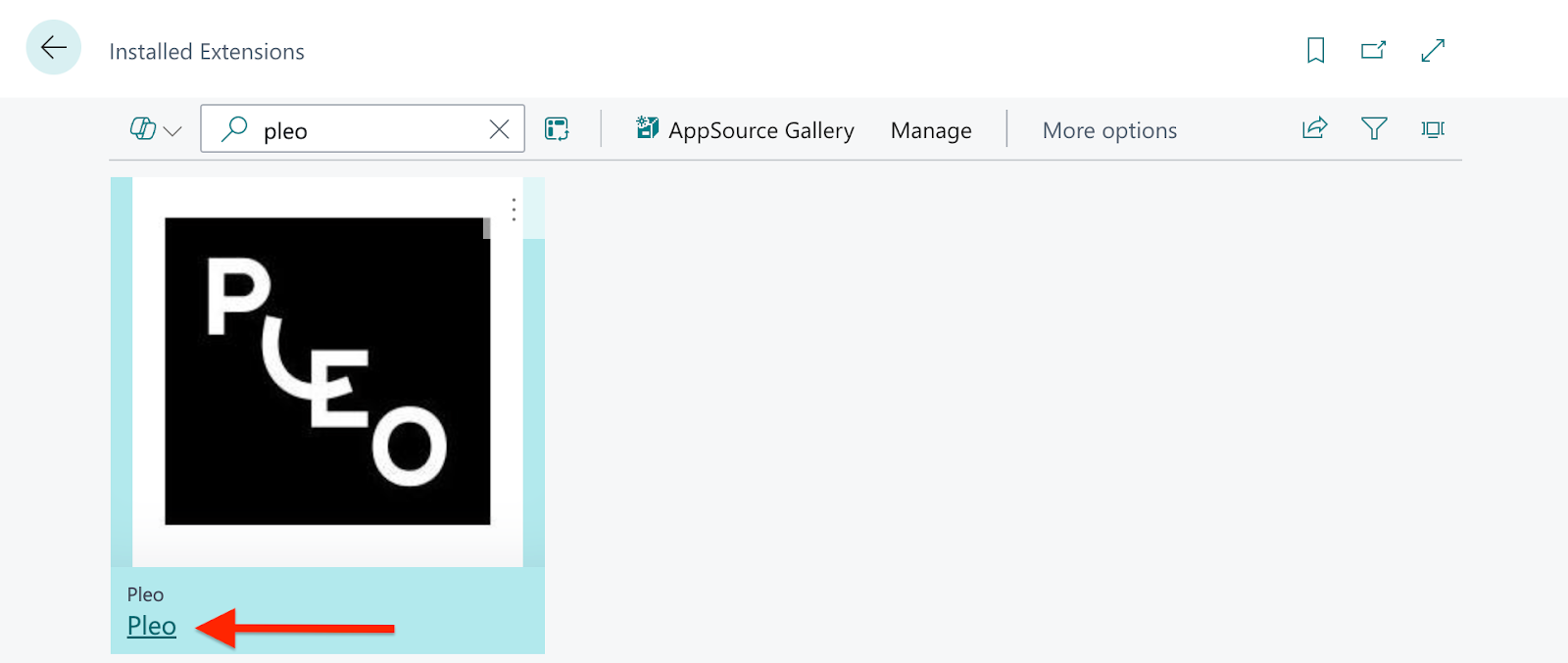
Note: It may take a few minutes - to check the status of the installation, click Manage > Installation Status - The extension will appear on the Extension Management page by searching Pleo
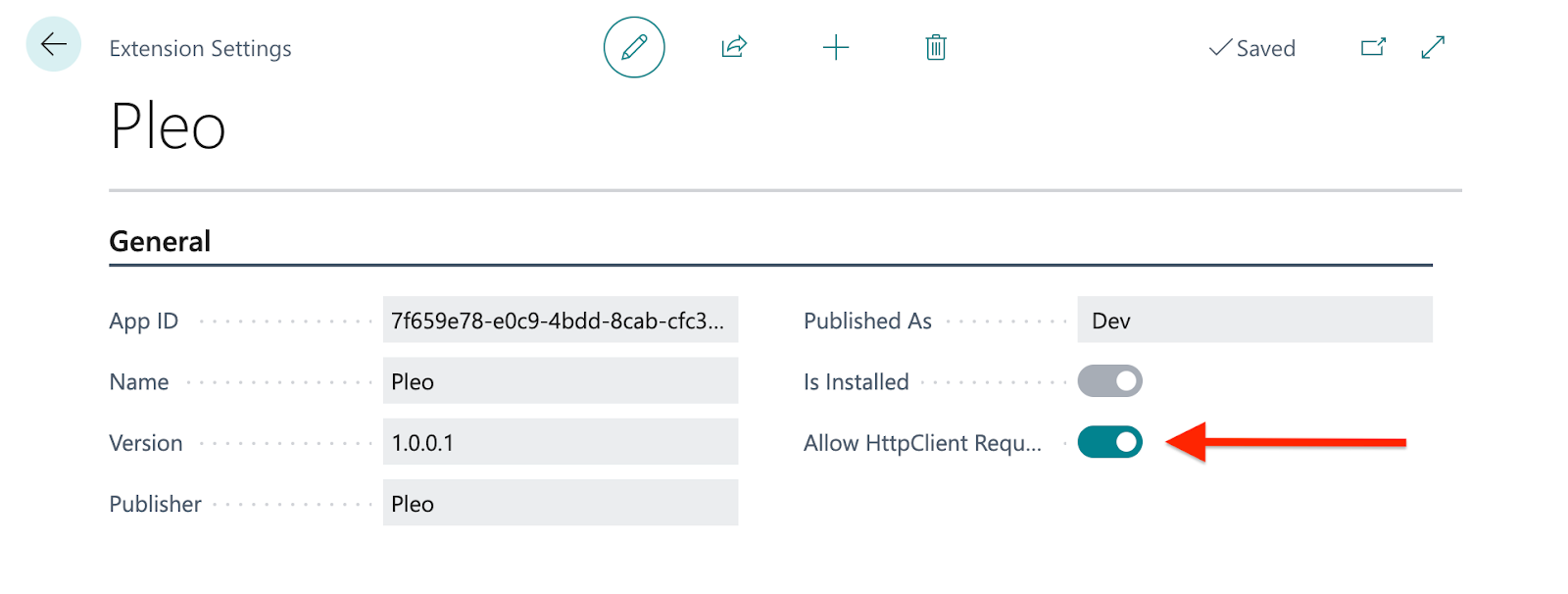
- Click Pleo
- Ensure that the Allow HttpClient Requests toggle is ON (green)
Connection
For Cloud Business Central
- In Business Central, open Pleo integration setup
- Click on the pencil icon to edit
- Click Connect
- Follow the steps of the authorisation process

Once the integration is connected, the Installation status will be ACTIVATED

For On-premises Business Central
- In Pleo, go to Settings
- Click Accounting
- Select Business Central On-Premises
- Allow the connection
- Copy and save the API Key
- In Business Central, open Pleo integration setup
- Click on the pencil icon to edit
- Enter the API key
- Click Connect

Once the integration is connected, the Installation status will be ACTIVATED

Configuration
Journals & Accounts configuration
In the Journals Setup section, set up the Expense Journal where all Pleo expenses will be recorded to (except Invoices and expenses booked on a Vendor).
How to create a new Journal in Business Central?
Journal Template - select the Journal Template and use any existing Journal template.
Note: Do not create a new Template for any journal
Journal Batch - create a new Journal Batch or map an existing one. To create a new Batch:
- Click on the Expense Batch field
- Click + New
- Add Name, Description, and, if needed, No. Series

In the Accounts Setup section, set up several accounts which will be used by the integration:
- Pleo Wallet Account - to track expenses made with your Pleo cards.
Note: If you want to have Pleo Wallet Account as a Bank Account in Business Central, set Pleo Wallet Account Type to Bank Account and create a new account
Pleo Out-of-pocket Account - to track employee out-of-pocket expenses.
Note: Learn how to link Business Central employees to Pleo users if you want to book out-of-pocket and reimbursement expenses on a Vendor or Employee in Business Central.
External Reimbursements Account - to track reimbursements made outside of Pleo.
Default Vendor Account: this Vendor account will be recorded on all expenses when an actual Vendor was not specified in Pleo. Required if you intend to use Pleo Invoices feature and/or if you want to book card expenses on a Vendor in Business Central.
How to create new Accounts in Business Central?
Pleo Wallet Account
- Choose Pleo Wallet Account type
- You can use either a G/L Account or a Bank Account type
- Create a new account by clicking on the account field and then clicking + New
- Add account No. and Name
- If you are creating a Bank Account, ensure that Bank Acc. Posting Group is assigned to the Account


Pleo Out-of-Pocket Account
Choose an Account Type for Pleo Out-of-pocket Account and map Pleo Out-of-Pocket Account No.
G/L Account is a standard default choice, but you can also choose Vendor or Employee.
- If Vendor is chosen:
- All pocket expenses will be booked on a single generic Vendor account
- Choose Vendor to record pocket expenses as Purchase Invoices in Business Central
- If Employee is chosen:
- All pocket expenses will be booked on Employees from Business Central
- You will need to manually link Pleo Users to Employees from Business Central
External Reimbursements Account
- Click on the field
- Select New
- Add account No. and Name
Default Vendor Account
- Click on the field
- Select New
- Use existing template for creating a Vendor
- Add account No. and Name
- Ensure that:
- Gen. Bus. Posting Group is set
- Vendor Posting Group is set
Accounting configurations
If needed, adjust the accounting configurations of the integration.
Description
Determines what appears on the Description and Comment fields on exported expenses in Business Central. To add a datapoint into the Description:
- Click the three-dotted sign
- Select the desired datapoint
- Click OK
Good to know: You can also add custom text (do not use [ ] around your text) that will appear in all exported expenses.
Tax Codes & tags
Synchronise VAT Setups to Pleo Tax Codes
- In Business Central, go to Pleo Integration Setup
- Access Tax Codes Setup
- Click Sync With Pleo
Good to know:
- To not import certain VAT Setups as Tax Codes in Pleo, un-click the Show in Pleo checkbox and click Sync With Pleo
- VAT Setups that are blocked or are Sales & Full Tax Type will not be synced.
Synchronise your Dimensions to Pleo Tags
- To link Dimension to existing Tag Groups
- In Business Central, go to Pleo Integration Setup
- Click Tags Setup
- Add the Dimensions from Business Central you want to sync with Pleo
Note: The Dimensions which already exist as active Tag Groups are automatically pre-selected - Select a Dimension
- Click OK
- Click Sync With Pleo

- To edit the Dimension values synced to Pleo
- Next to the dimension field, click on the three dots icon
- Uncheck Show in Pleo for Dimension Values you do NOT want to have in Pleo as Tags
- Click Sync With Pleo
- Next to the dimension field, click on the three dots icon

Good to know:
- Dimensions are linked to Tag Groups
- Dimension values are linked to tags
- Blocked or non-standard Dimension Values can’t be made visible in Pleo
- Learn how to link Pleo Teams to a Dimension from Business Central to automatically assign dimension values to expenses based on the team selected.
Vendor Tagging
Learn how to activate Vendor tagging in Pleo.
Contra Account
- In Pleo, navigate to Settings
- Click Accounting
- Access Contra Accounts
- Select the same account you set as your Pleo Wallet (Contra) Account as the default currency contra account
Good to know: Learn what to do if you see ‘No options’ when configuring the default currency contra account in Pleo.
Categories
Learn how to create your categories, and once created, you can follow these steps:
- In Pleo, go to Settings
- Click Accounting
- Select Categories
- For each category
- Select the relevant Account Number
- Choose a tax code from the dropdown
Export an expense
Was this article helpful?
That’s Great!
Thank you for your feedback
Sorry! We couldn't be helpful
Thank you for your feedback
Feedback sent
We appreciate your effort and will try to fix the article
Need more help? Contact us.
Login and click the ? in the bottom right corner to chat with us. Having issues logging in? Find out why you are unable to log in.
